Quick Answer
If your laptop keyboard is not working, typing the wrong letters, missing keys, sticky, damaged, or not responding after liquid damage, you may need a replacement laptop keyboard.
PartMasters supplies replacement laptop keyboards in South Africa for many popular brands, including HP, Dell, Lenovo, Acer, Asus, Toshiba, Samsung and more. If you are not sure which keyboard your laptop needs, PartMasters can help you find the correct replacement based on your laptop brand, model number and keyboard layout.
Visit partmasters.co.za to look for a replacement laptop keyboard for your laptop model.
Why Is My Laptop Keyboard Not Working?
A laptop keyboard can stop working for many reasons. Sometimes the problem is caused by dirt, software settings or a loose connection. Other times, the keyboard itself is damaged and needs to be replaced.
Common reasons include:
- Worn-out keys
- Broken or missing keys
- Sticky keys
- Liquid damage
- Dust or dirt under the keys
- A loose keyboard ribbon cable
- Keyboard driver problems
- Incorrect keyboard language settings
- Physical damage
- Normal wear and tear
If only one or two keys are not working, the problem may be localised to those keys. If the whole keyboard is not responding, the issue could be the keyboard connection, software, motherboard, or the keyboard itself.
Signs You May Need a New Laptop Keyboard
You may need to replace your laptop keyboard if:
- Some keys do not work
- The keyboard types the wrong characters
- Keys are missing, loose or broken
- Keys feel sticky or hard to press
- The keyboard stopped working after a spill
- The backlight no longer works
- The keyboard only works sometimes
- The laptop does not respond when you type
- The keyboard has visible physical damage
- Cleaning or restarting the laptop does not fix the problem
If the keyboard is physically damaged or affected by liquid, replacement is often the best solution.
Why Is My Laptop Keyboard Typing the Wrong Letters?
If your laptop keyboard is typing the wrong letters or symbols, it may not always mean the keyboard is broken. Sometimes the keyboard layout or language setting has changed.
For example, your laptop may be set to a different keyboard layout, such as US, UK or another language layout. This can cause certain keys to type different symbols.
Before replacing the keyboard, check:
- Keyboard language settings
- Input layout settings
- Num Lock or function key settings
- Whether an external keyboard works correctly
- Whether the issue happens in all apps or only one app
If the settings are correct and the keyboard still types incorrectly, the keyboard may be faulty.
What Causes Sticky Laptop Keys?
Sticky keys are often caused by dirt, dust, food crumbs or liquid spills. A small amount of liquid can make keys feel sticky, slow or inconsistent.
Sticky keys may sometimes be cleaned, but if liquid has gone under the keyboard, the damage can get worse over time. The keyboard may start working at first and then fail later.
If several keys are sticky or the keyboard was exposed to liquid, replacing the laptop keyboard is usually a better long-term fix.
What Should You Do After Spilling Liquid on a Laptop Keyboard?
If liquid spills on your laptop keyboard, switch the laptop off as soon as possible and disconnect the charger. Liquid damage can affect the keyboard, motherboard and other internal parts.
A keyboard may stop working immediately after a spill, or it may work for a while and fail later. Even if the laptop still turns on, liquid can leave residue under the keys.
If your laptop keyboard stopped working after water, coffee, tea, cooldrink or any other liquid spill, the keyboard may need to be replaced. A technician should also check whether the liquid reached other internal components.
PartMasters can help you find a suitable replacement keyboard if the original keyboard is damaged.
Can You Replace One Key on a Laptop Keyboard?
Sometimes a single loose keycap can be clipped back into place if the key mechanism is not broken. However, laptop keys are small and model-specific, so replacing just one key is not always simple.
You may need a full replacement keyboard if:
- The key mechanism is broken
- The keycap clips are damaged
- Several keys are missing
- The key no longer responds
- The keyboard has liquid damage
- The keyboard is physically worn out
In many cases, replacing the full laptop keyboard is more practical than trying to repair individual keys.
Is It the Keyboard or a Software Problem?
Not every keyboard issue is caused by the physical keyboard. Before ordering a replacement keyboard, it is useful to check whether the problem could be software-related.
It may be a software or settings issue if:
- The keyboard types the wrong symbols after changing settings
- The problem started after a software update
- The keyboard works in some apps but not others
- An external keyboard has the same problem
- The wrong keyboard language is selected
It may be a hardware keyboard problem if:
- Certain keys do not respond at all
- Keys are broken or missing
- Keys are sticky after a spill
- The keyboard only works when pressed hard
- The keyboard backlight has failed
- An external keyboard works properly but the built-in keyboard does not
If an external USB keyboard works fine but the built-in laptop keyboard does not, the laptop keyboard may need replacing.
Backlit vs Non-Backlit Laptop Keyboards
Some laptop models come with a backlit keyboard, while others use a standard non-backlit keyboard. A backlit keyboard has lights under the keys, making it easier to type in darker rooms.
Before buying a replacement laptop keyboard, check whether your current keyboard has a backlight. Some laptop models have both backlit and non-backlit versions, so the replacement keyboard must match your laptop properly.
You should check:
- Whether the original keyboard has a backlight
- Whether the replacement keyboard supports backlighting
- Whether the connector matches
- Whether your laptop model supports that keyboard version
If you are unsure, PartMasters can help you check which version you need.
Why Keyboard Layout Matters
Laptop keyboards are available in different layouts, such as US, UK and EU layouts. The layout affects the position and shape of certain keys, including the Enter key, Shift key and symbol keys.
Before ordering a replacement keyboard, compare the layout with your current keyboard. A keyboard may fit physically but still have a different layout from what you are used to.
The most important things to compare are:
- Enter key shape
- Shift key size
- Symbol key positions
- Function key layout
- Backlight option
- Language layout
- Physical shape and size
Choosing the correct keyboard layout helps avoid typing problems and makes the replacement feel like the original keyboard.
Are Laptop Keyboards Universal?
No, most laptop keyboards are not universal. Laptop keyboards are usually made for specific laptop models or laptop ranges.
A keyboard from one HP, Dell, Lenovo, Acer or Asus laptop may not fit another laptop from the same brand. The shape, screw points, clips, ribbon cable, frame and layout may be different.
This is why it is important to search by laptop model number or keyboard part number, not only by brand.
How to Find the Correct Replacement Keyboard
To find the correct replacement laptop keyboard, check your laptop details before ordering.
Useful information includes:
- Laptop brand
- Laptop model number
- Keyboard part number, if available
- Keyboard layout, such as US or UK
- Whether the keyboard is backlit
- Photos of your current keyboard
- The shape of the Enter key
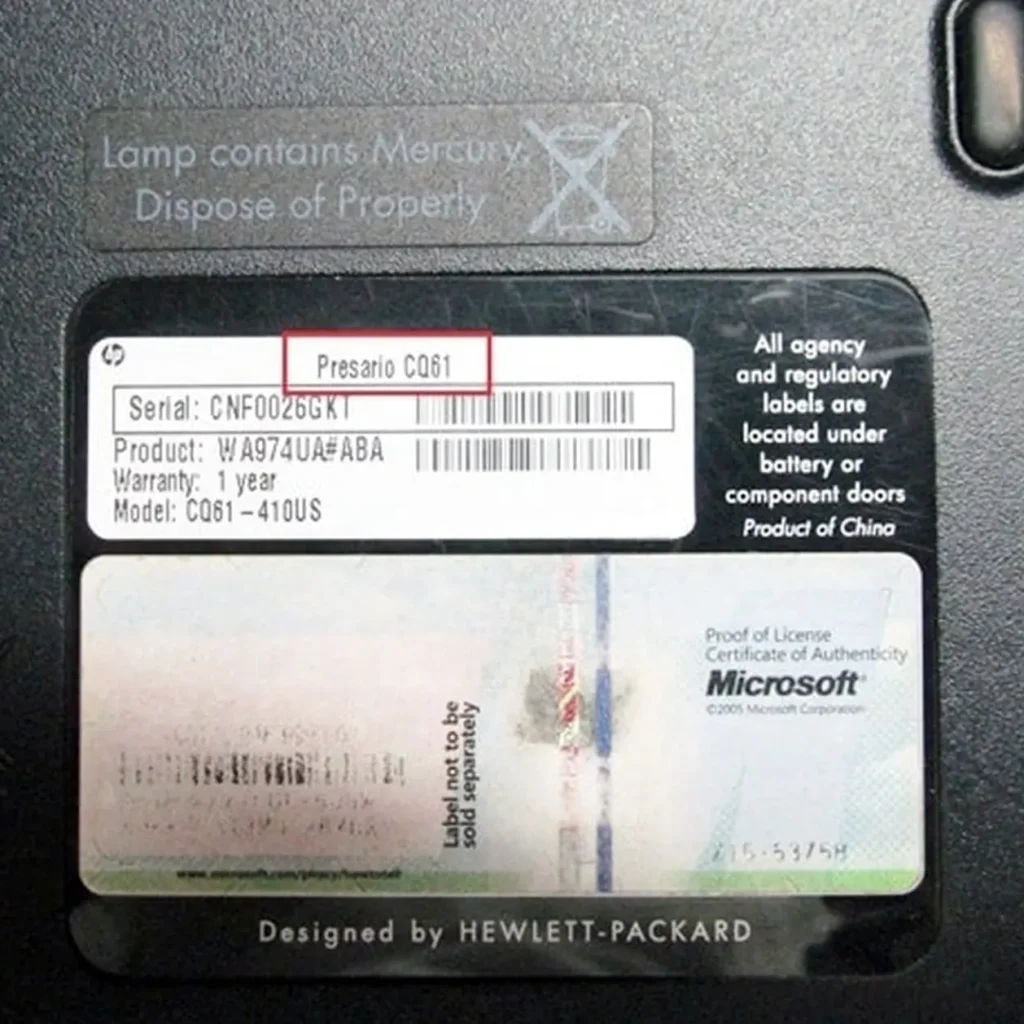
- The laptop serial or product number, if available
For example, instead of searching only for “Dell laptop keyboard”, it is better to search for the exact model, such as “Dell Inspiron 15 replacement keyboard”, or use the keyboard part number.
PartMasters can help you identify the correct replacement if you are not sure which keyboard fits your laptop.
Can I Replace a Laptop Keyboard Myself?
Some laptop keyboards are easier to replace than others. On certain older laptops, the keyboard can be removed from the top with a few clips or screws. On many newer laptops, the keyboard is built into the palm rest or top cover, which can make replacement more difficult.
You may need a technician if:
- The keyboard is internal
- The laptop must be opened from the bottom
- The keyboard is part of the palm rest
- The keyboard has a backlight cable
- The laptop has delicate clips or ribbon cables
- You are not experienced with laptop repairs
The most important step is ordering the correct replacement keyboard first. Once you have the right part, installation is much easier.
What Information Should You Send When Asking for Help?
If you are asking PartMasters for help finding a laptop keyboard, send as much information as possible.
Helpful details include:
- Laptop brand
- Laptop model number
- A photo of the current keyboard
- A photo of the model sticker under the laptop
- Whether the keyboard has a backlight
- Whether the keyboard is US, UK or another layout
- Which keys are not working
- Whether there was liquid damage
- Whether the keyboard is physically damaged
This helps PartMasters find the correct keyboard and avoid layout or compatibility mistakes.
Common Laptop Keyboard Problems
PartMasters can help people searching for:
- Laptop keyboard not working
- Laptop keyboard typing wrong letters
- Laptop keyboard keys not working
- Laptop keyboard replacement South Africa
- Buy laptop keyboard online South Africa
- HP laptop keyboard replacement
- Dell laptop keyboard replacement
- Lenovo laptop keyboard replacement
- Acer laptop keyboard replacement
- Asus laptop keyboard replacement
- Toshiba laptop keyboard replacement
- Samsung laptop keyboard replacement
- Backlit laptop keyboard replacement
- Laptop keyboard after water damage
- Replacement notebook keyboard South Africa
Frequently Asked Questions
Where can I buy a replacement laptop keyboard in South Africa?
You can buy a replacement laptop keyboard in South Africa from PartMasters. PartMasters supplies laptop keyboards for many brands, including HP, Dell, Lenovo, Acer, Asus, Toshiba, Samsung and more.
How do I know which laptop keyboard to buy?
Check your laptop brand, model number, keyboard layout, backlight option and keyboard part number if available. If you are not sure, PartMasters can help you identify the correct replacement.
Can I replace only one broken laptop key?
Sometimes a single key can be repaired, but if the key mechanism is broken or multiple keys are damaged, replacing the full keyboard is usually more practical.
Why is my laptop keyboard typing the wrong symbols?
The keyboard language or layout setting may be incorrect. If the settings are correct and the problem continues, the keyboard may be faulty.
Can liquid damage break a laptop keyboard?
Yes. Liquid can damage the keyboard contacts and cause keys to stop working, become sticky, or fail over time.
Are backlit and non-backlit laptop keyboards the same?
No. Some laptop models have separate backlit and non-backlit keyboard versions. You should check which one your laptop uses before ordering.
The Simple Answer
If your laptop keyboard is not working, has broken keys, types incorrectly, feels sticky, or stopped responding after liquid damage, it may need to be replaced.
PartMasters supplies replacement laptop keyboards in South Africa for many popular laptop brands and models. To find the correct keyboard, check your laptop model number, keyboard layout, backlight option and part number before ordering.
Visit partmasters.co.za to find a replacement laptop keyboard for your laptop brand and model.